
Documentation
Get started quickly or explore in more depth.
Quick Start Guide
Use these steps to get started with a participant.
1. After registration
After registering, you have a Start And Do business account. Use it to set up Start And Do for your clients and participants. This guide covers the basics.
The menu has two parts. The top part is for participants; the lower menu lets you support clients by adding participants, creating handouts, and more.

Enter your practice details so participants see them while using Start And Do and in their email invitation. Open your business account settings with the cog in the menu.
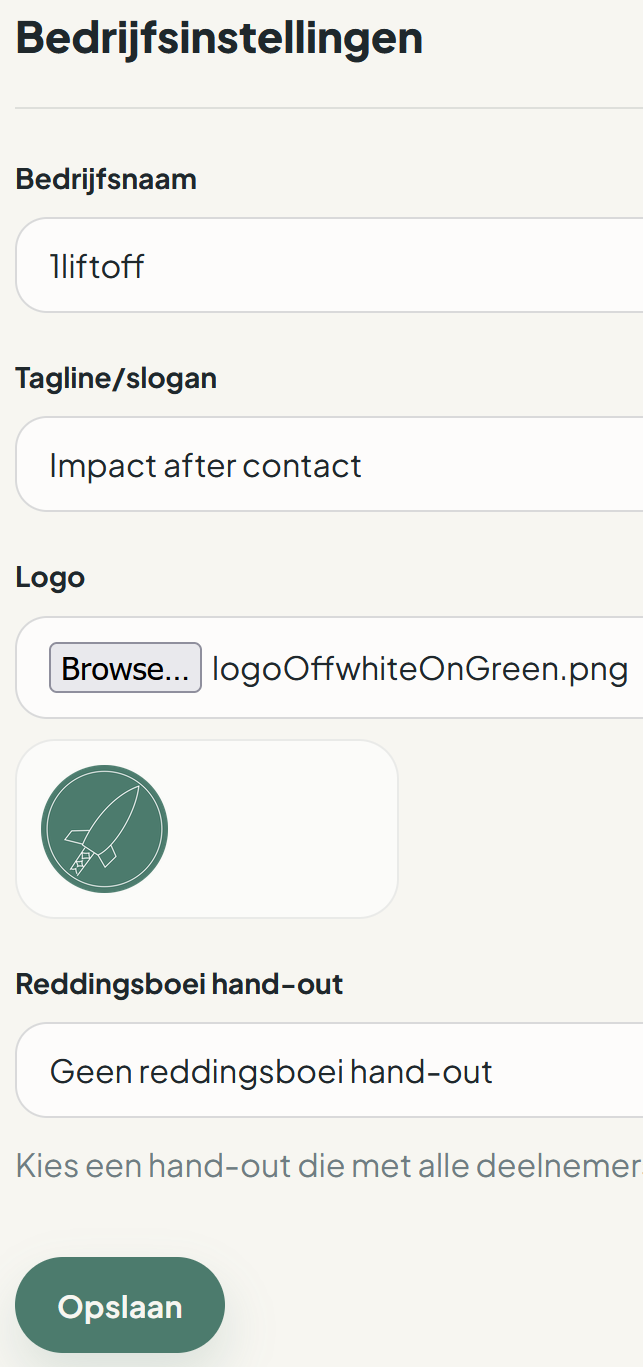
If you have not set up payment, do that next through 🏠 in the menu. You pay only for each new participant, so an amount of €0 during setup can be correct.
2. Add a participant
A participant is your client: someone taking part in your practice's offering, a program, or a training course. Add one using their email address. New participants receive an invitation to finish creating their account, except users who already exist.
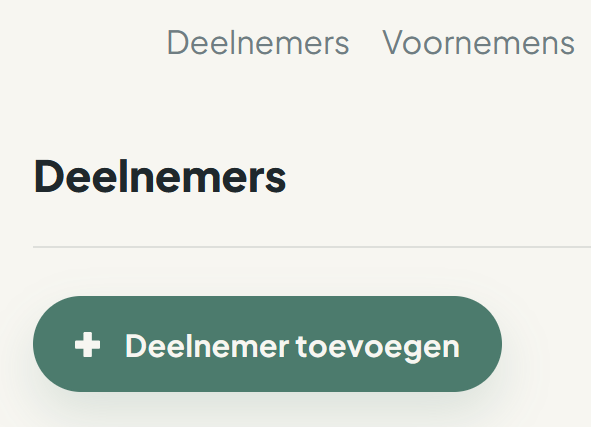
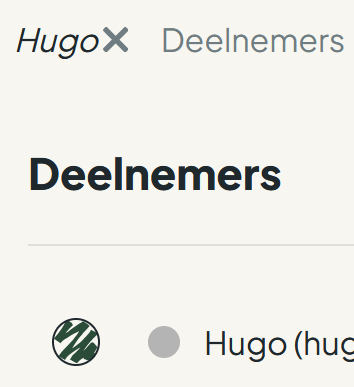
Then select the participant. They appear at the top of the page. Many features respond to the selected participant, so you can safely share other screens without accidentally showing client names.
3. Create a guided intention
Once a participant is selected, add an intention from the menu. An intention can be an action, reflection, assignment, or something to take away from a conversation: for example, a Sunday reflection, daily walk, or tracking how someone feels.
Create it together in a session, or let the participant add it afterwards and optionally share it with you. In this guide, add a daily walk.
Open Intentions in the menu and add a new intention. Select “more information” for examples and details for a field.
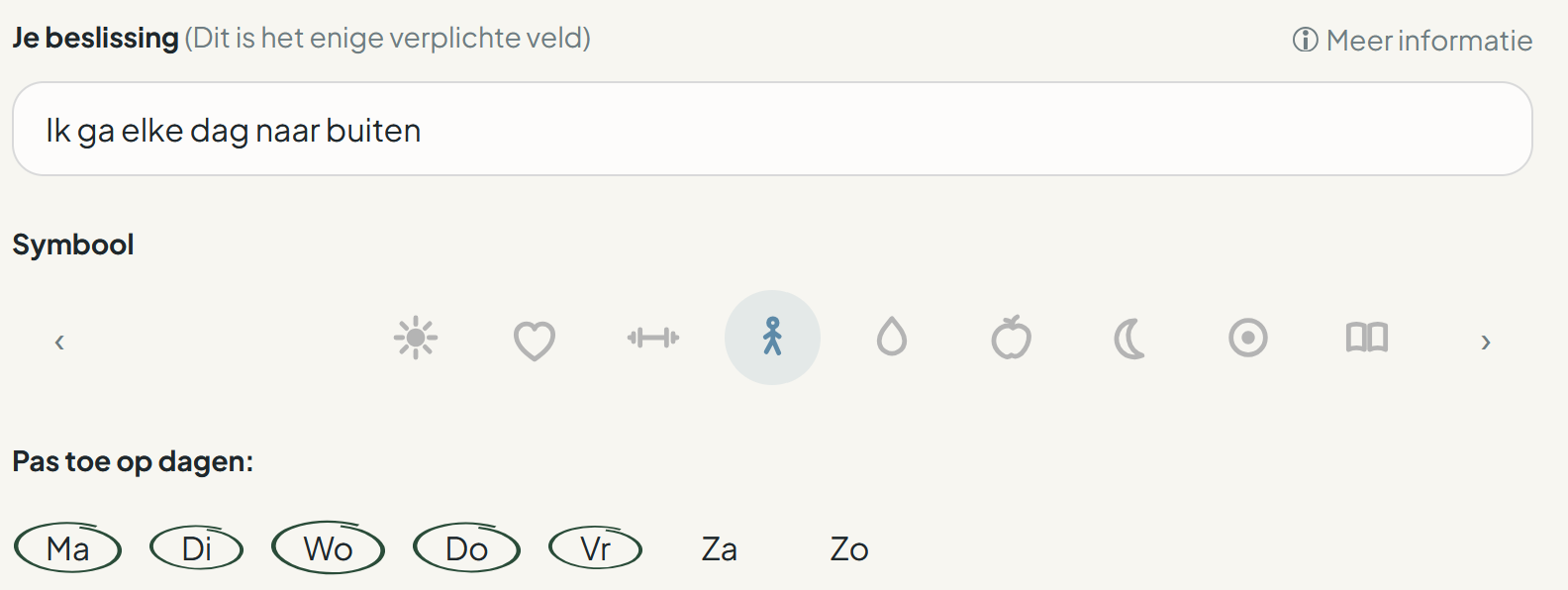
Complete the optional Plan to make the intention concrete. Under App behaviour, specify how many times each day it should happen. Add anything the participant may track, such as a feeling and a short reflection.
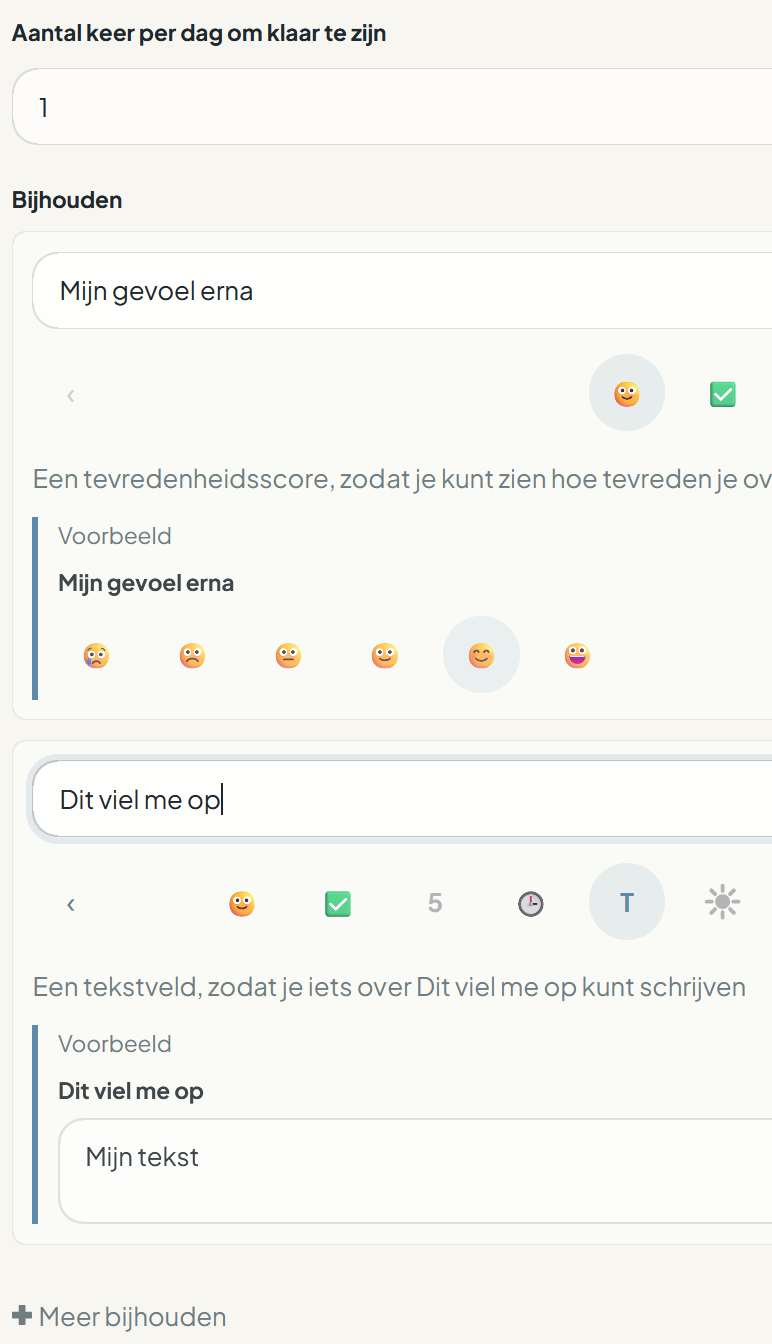
In the same section, you can set one or more reminders on the participant's phone. Save the intention and the participant can get started. Create a template if you use similar intentions often.

4. Share a handout
Handouts contain background information or an exercise in more detail. Share one with the selected participant; they receive a notification and can view it or attach it to an intention.
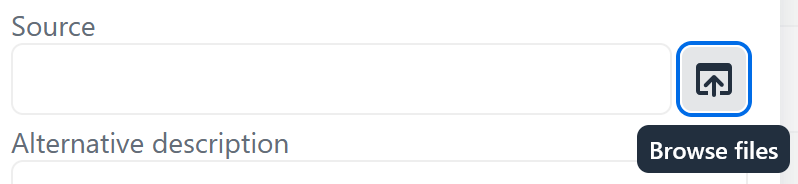
Choose Handouts in the menu, add a title and content, and save the handout.
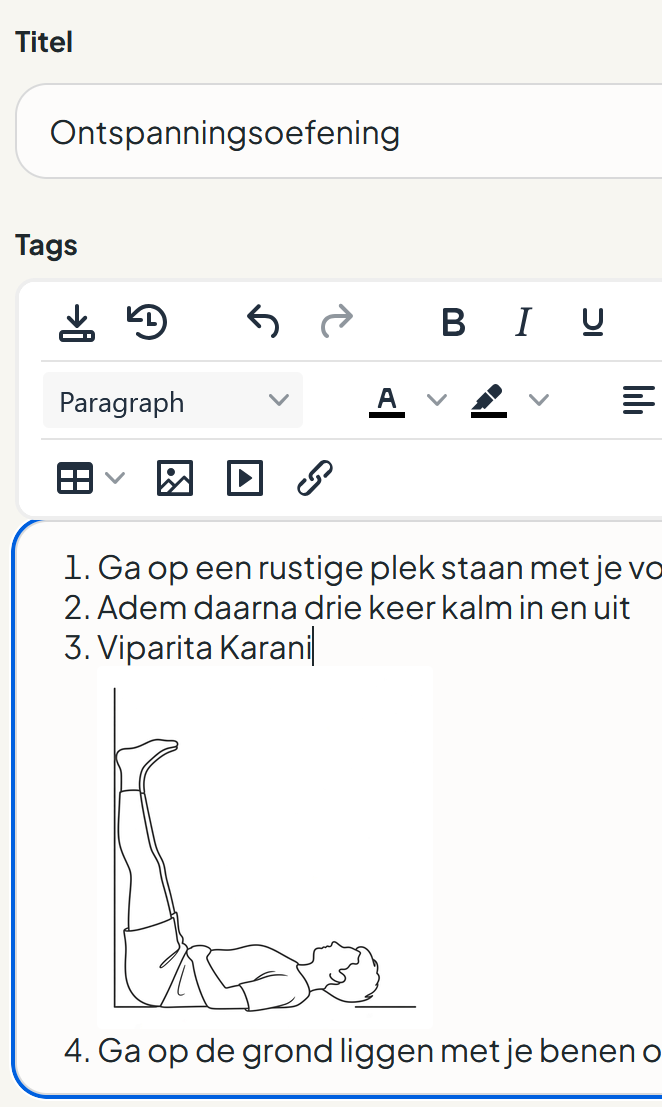

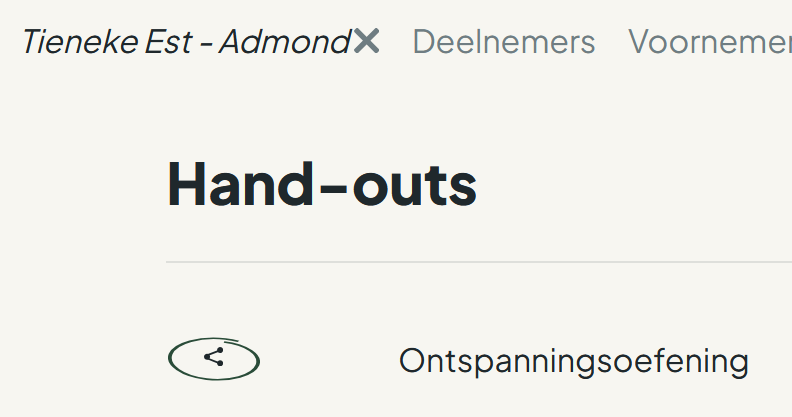
Use the share icon in Handouts to share it directly with the selected participant, or attach it while editing an intention.
5. View progress
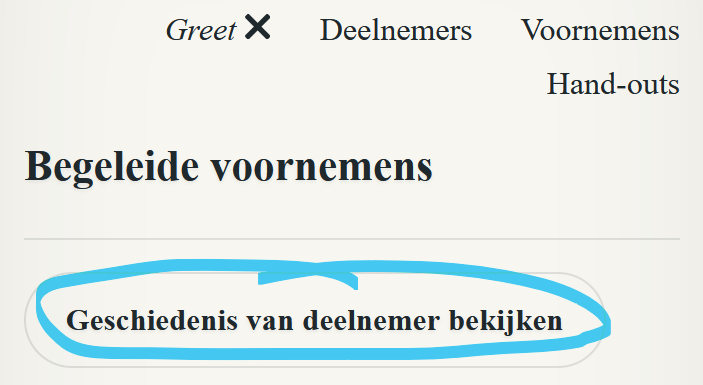
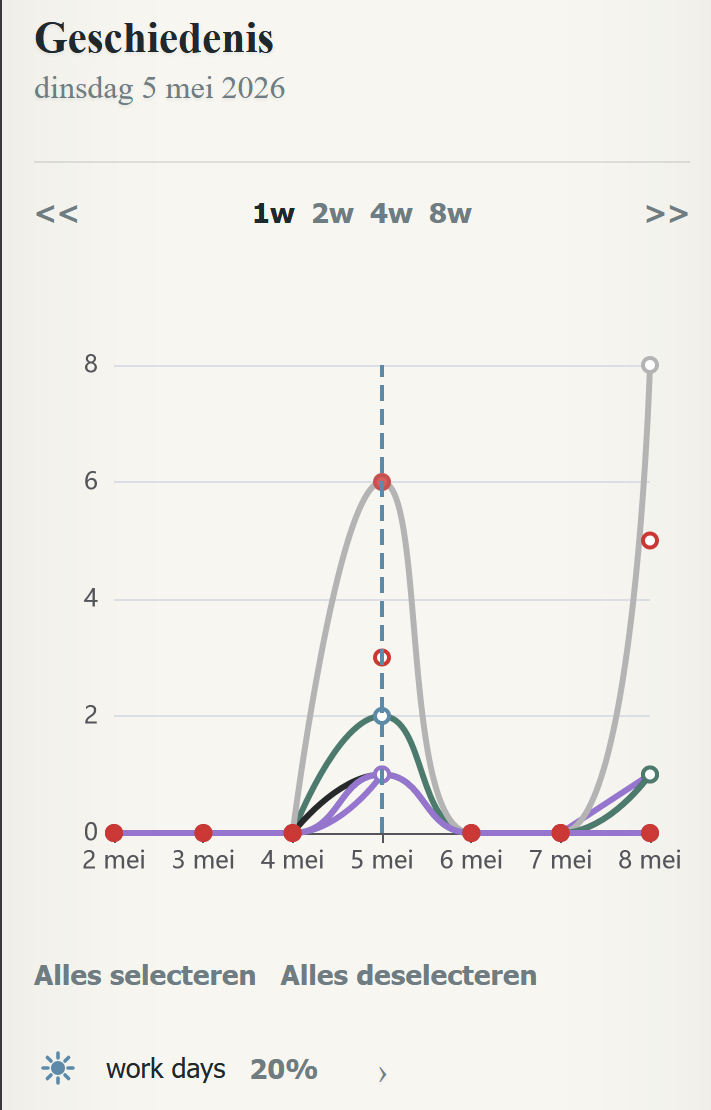
Open Recent history from Intentions in the menu to view a participant's progress. From the Intentions menu, you can also open a participant's history and compare multiple intentions side by side.
How-to
Choose a topic for more information.
Share handouts
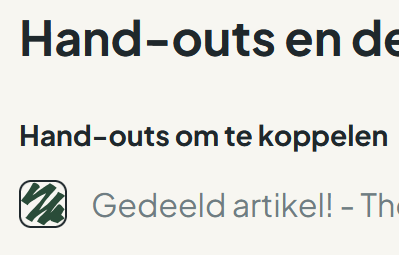
Share a handout with one participant or with all participants. Participants can view it and attach it to an intention.
Select the share icon in Handouts to share with the selected participant, or add the handout while editing an intention.
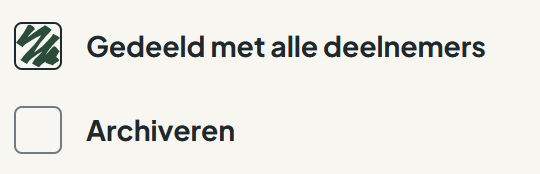
To share with all participants, select that option when editing the handout. The list shows it with the group icon.

Set up a life buoy handout 🛟
Use a life buoy handout to share instructions for difficult moments, such as helpline instructions or calming exercises. Create the handout, share it with all participants, and save it.
Then open Settings ⚙️ and choose it as the life buoy handout in your business settings.
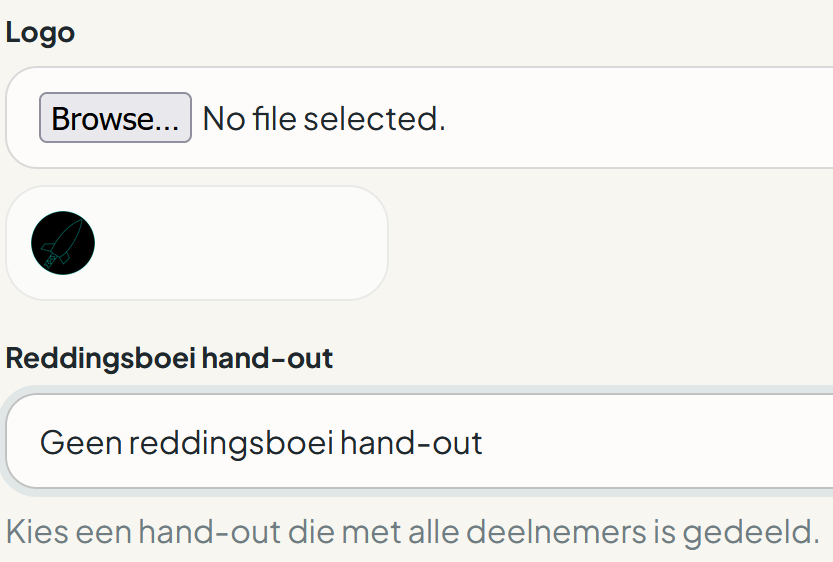
The life buoy icon then appears in participants' menus so they can open the handout directly.

Create and use templates
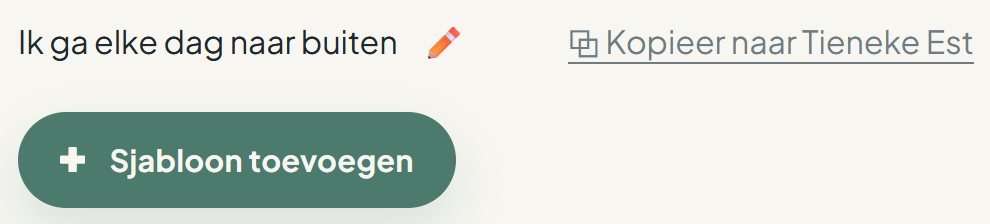
Create a template when you want to share similar intentions more often. Enter the same details, reminders, and things to track as for a regular intention. To use it, select a participant, open Templates, and select the copy button.
Use tags
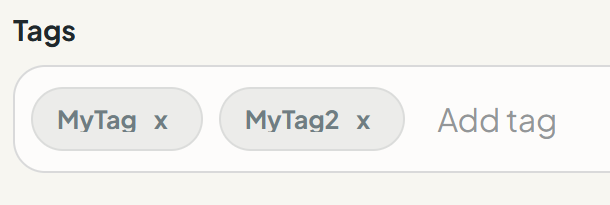
Add tags to participants, templates, and handouts to group and organize them. Type a tag in a search bar to filter by it.
Use programs
Programs give a series of sessions structure for one participant, a group, or a combination of group and individual sessions. You manage programs as a guide; participants see only the appointments intended for them.
Create a program template
Use an intention template to create standard intentions quickly. Use a program template to create standard sessions quickly. Open Programs, select Templates, and add a template. Give the program or template a name and description, then add sessions in the desired order.
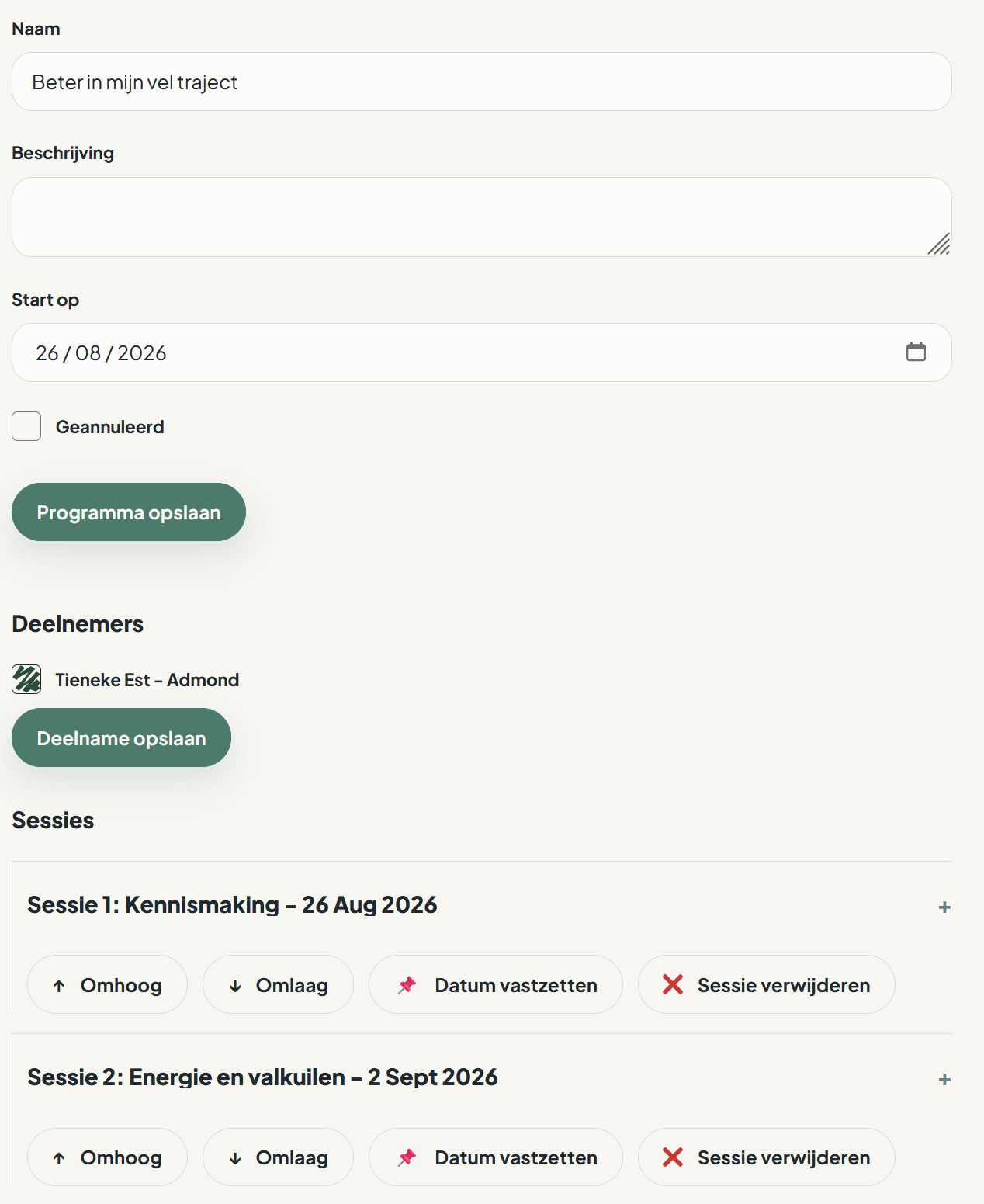
Choose Shared for all program participants, Limited for a selected part of the group, or Individual for a one-to-one session per participant. Add a subject, start time, duration, location, or online link as needed.
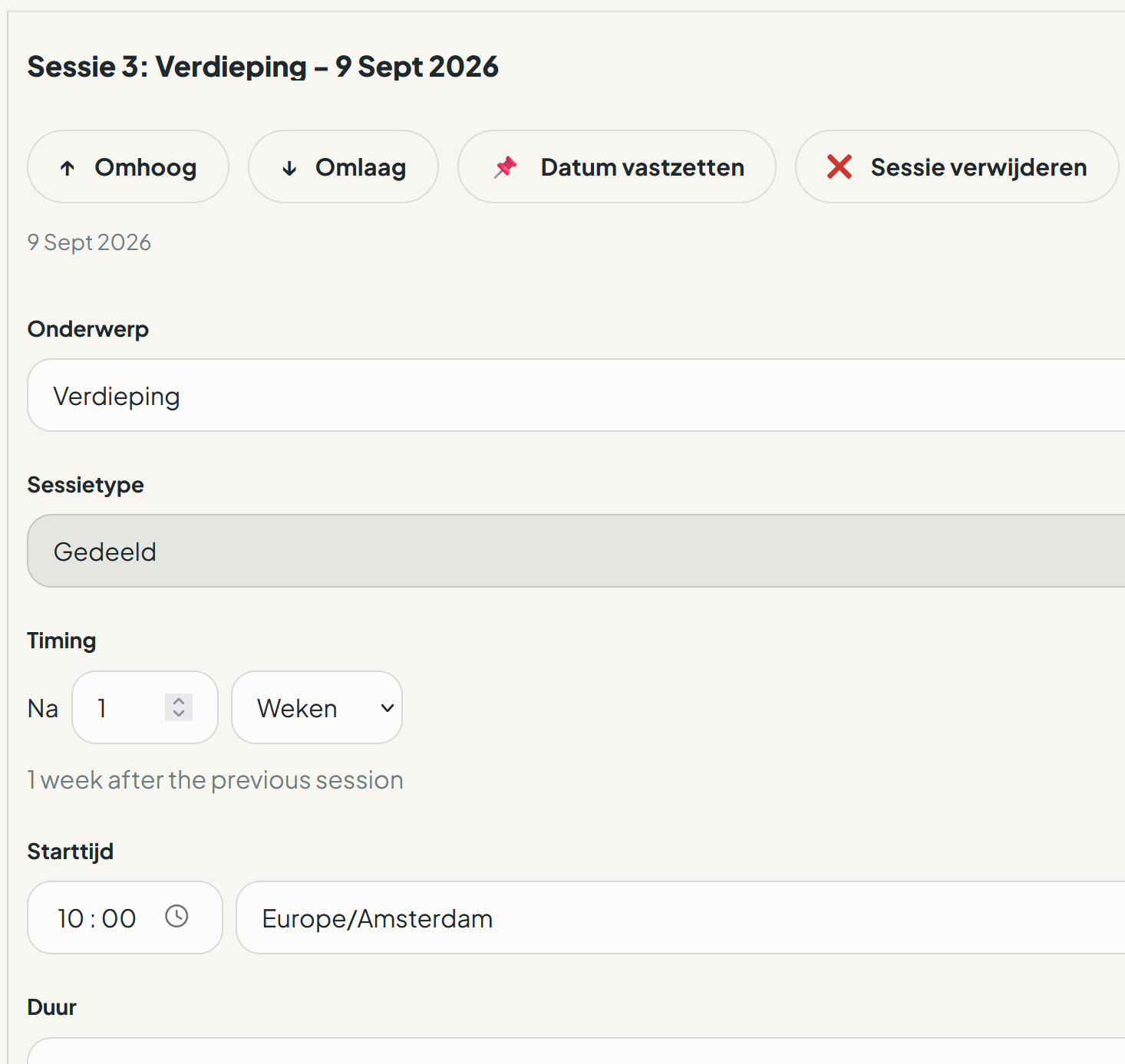
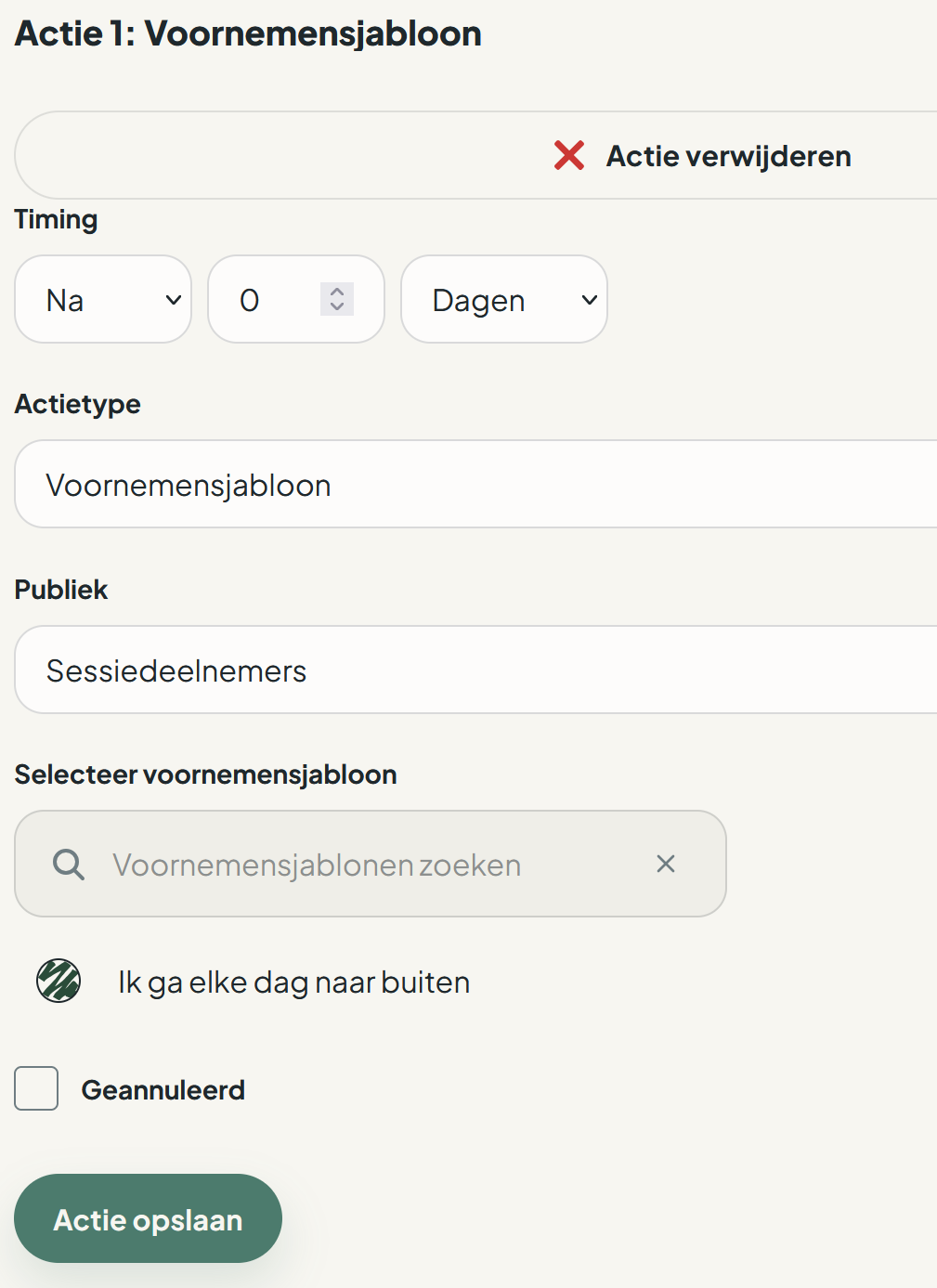
Add actions to a session: a manual reminder for yourself, a handout to share automatically, or an intention created from an intention template. Decide whether it happens before or after the session and how many days or weeks apart they are.
Schedule sessions and appointments
Until a session has an appointment, Start And Do shows a suggested date based on the program setup. The participant cannot see the session. Select Fix date and save the appointment when the date and time are final.

For a limited session, first select and save the invited participants; then schedule the appointment and optionally record attendance.
Follow participants and actions
You can add or remove participants from an ongoing program. In Planning, you see what needs attention and which activities are coming up. Open an action to complete, carry out, retry, cancel, or move it.
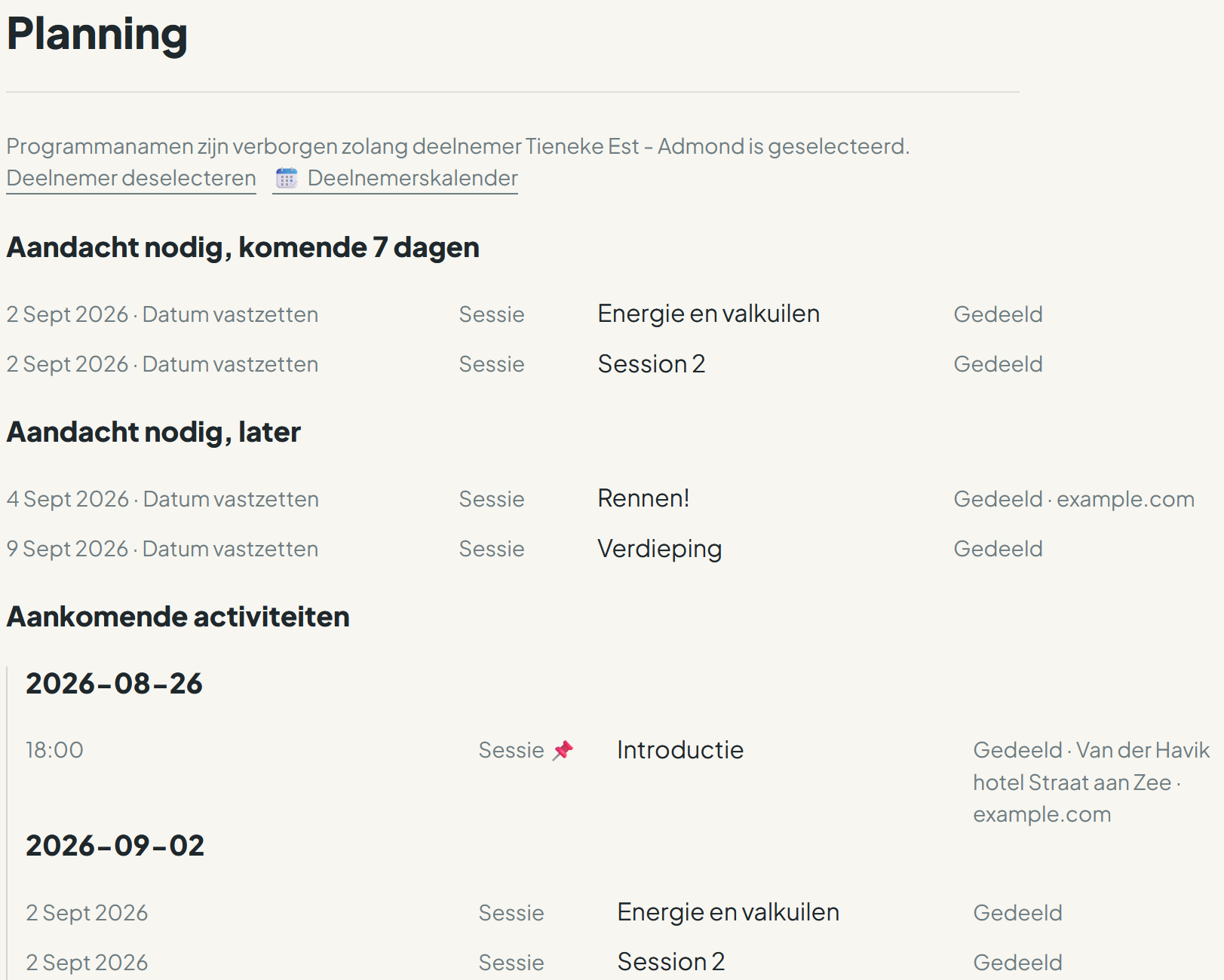
When you select a participant in Planning, open their Participant calendar for upcoming appointments and sessions. From there, open the program, schedule a new appointment, or create a standard program.
Schedule appointments
Select the participant in Planning, open the Participant calendar, choose Schedule new appointment under the relevant program, enter the date and time, and select Save appointment.
For full instructions, see Schedule appointments through the Participant calendar.
Schedule appointments through the Participant calendar
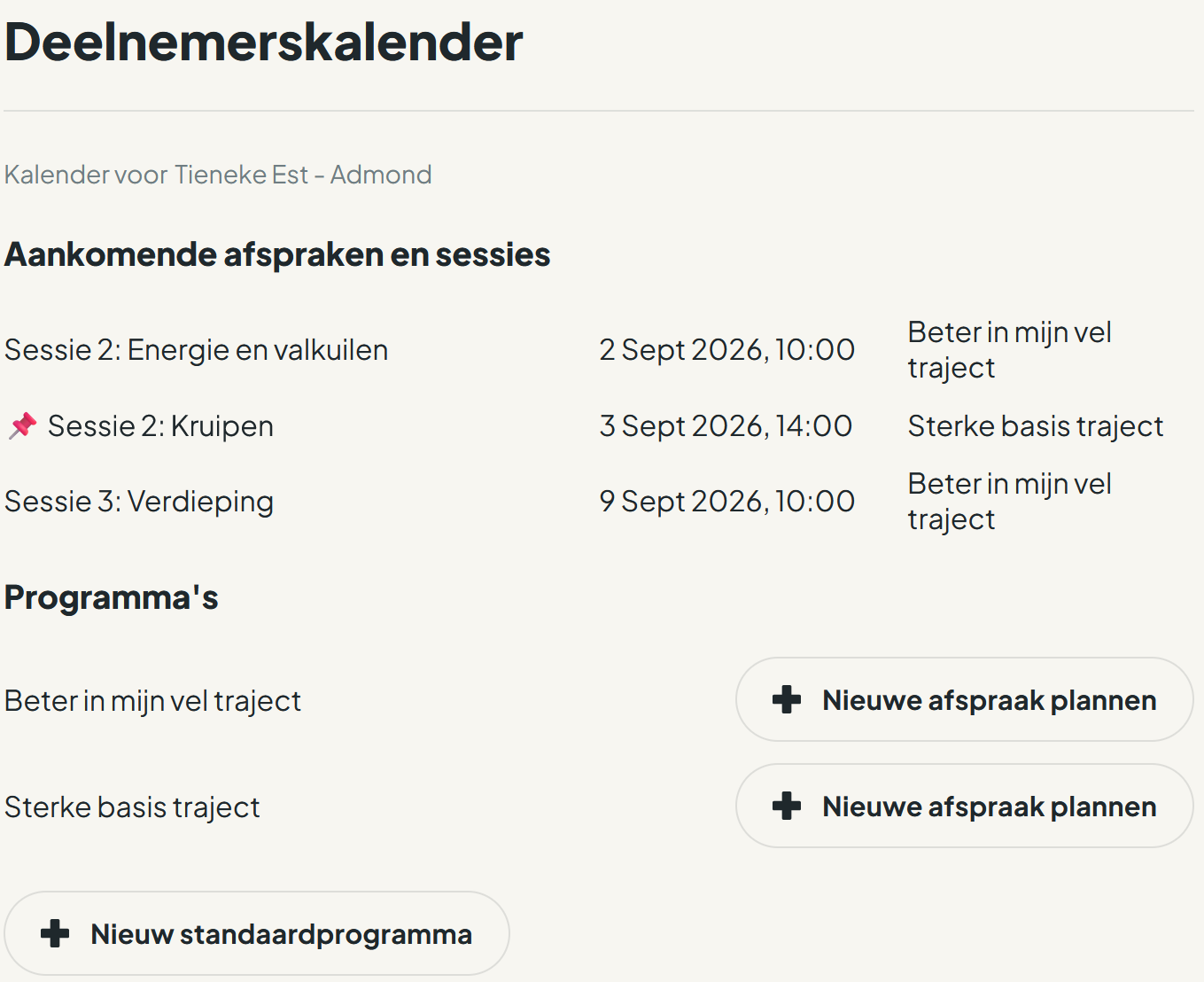
Select a participant, then open the Participant calendar through Planning or Programs. It is always for one participant.
A fixed appointment has a 📌. Under Programs, you see the programs in which the participant takes part.
Schedule a new appointment
Choose Schedule new appointment. Start And Do opens the program, adds a session, and takes you to its Appointment section. Enter the details and select Save appointment. The participant sees it through 📆 in Start And Do.
Set access and permissions
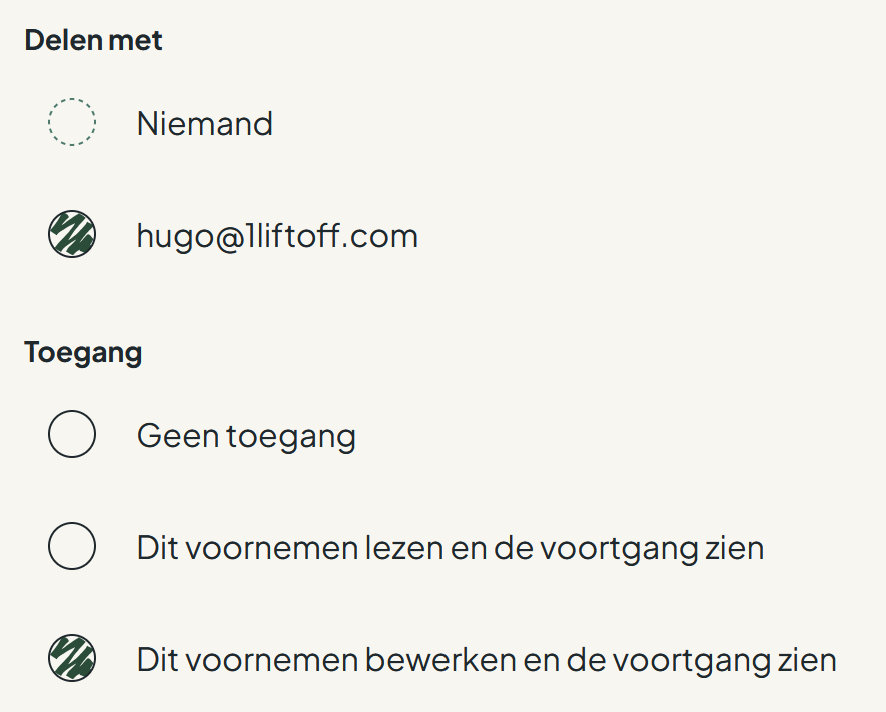
For each intention, participants can decide whether and how to share it with their guide. You can also set that a participant may not create new intentions.
Archive intentions and handouts
Archived intentions disappear from lists but remain visible in their history. Archived handouts are no longer visible to participants.

Use an intention without a target or as a to-do
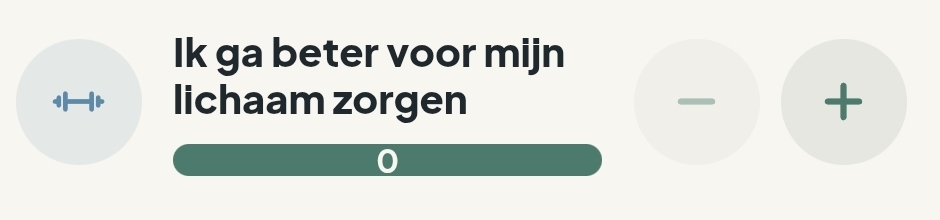
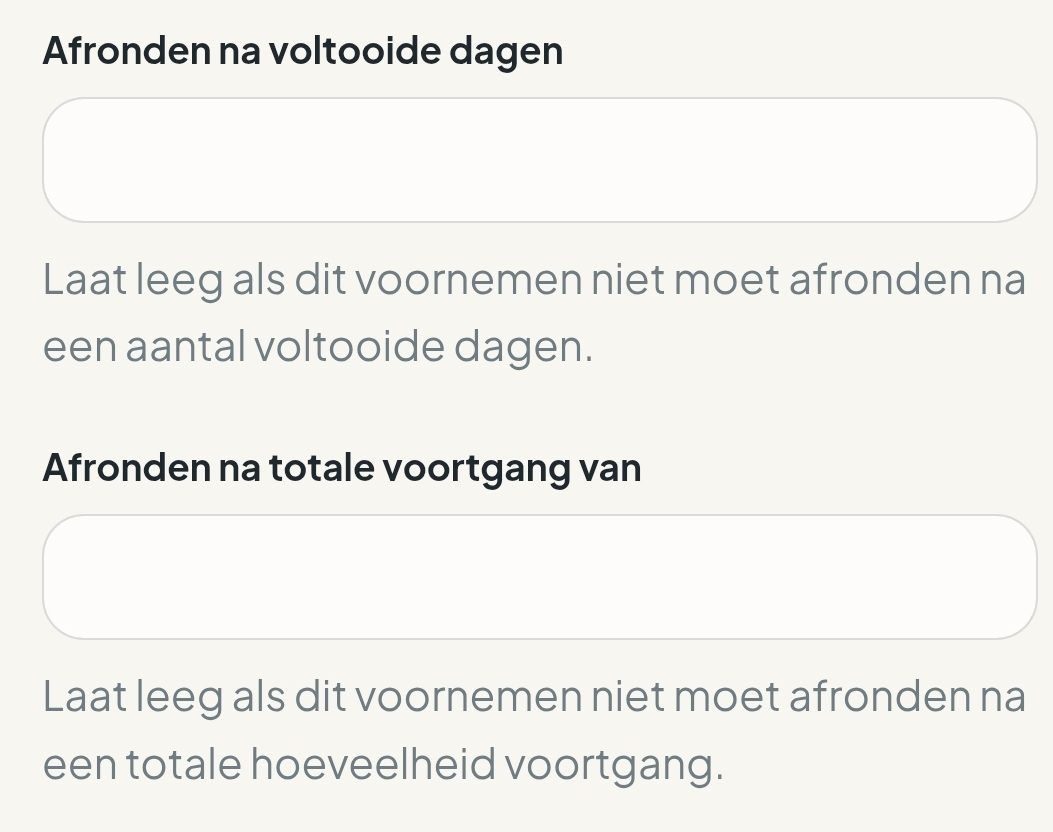
Set an intention to 0 times per day to track information without a target, such as cups of coffee. With 0 as the target, the intention is always complete, so no reminder is sent that it still needs to happen. You can also make an intention deactivate automatically to turn it into a to-do.
Track data points
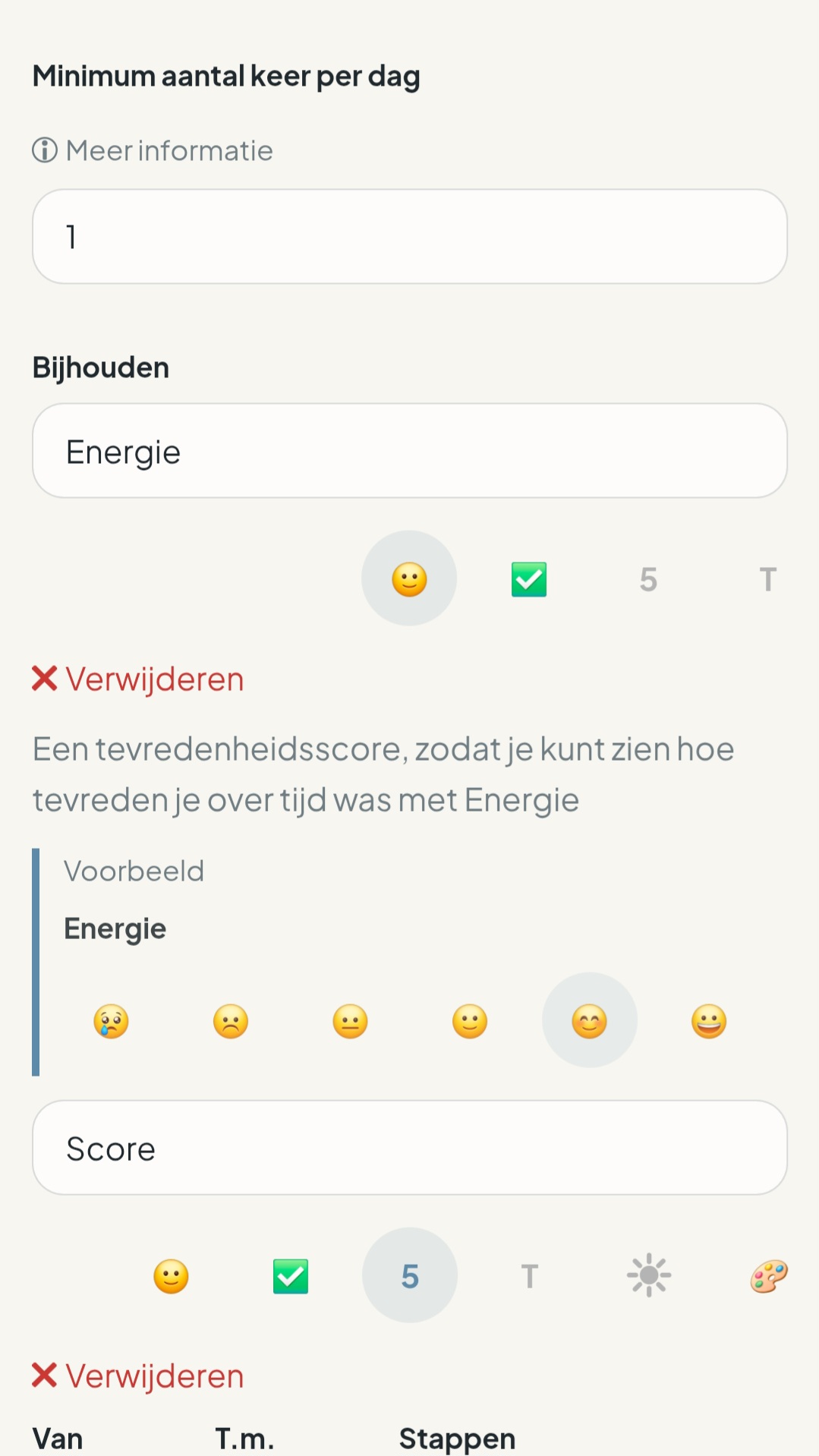
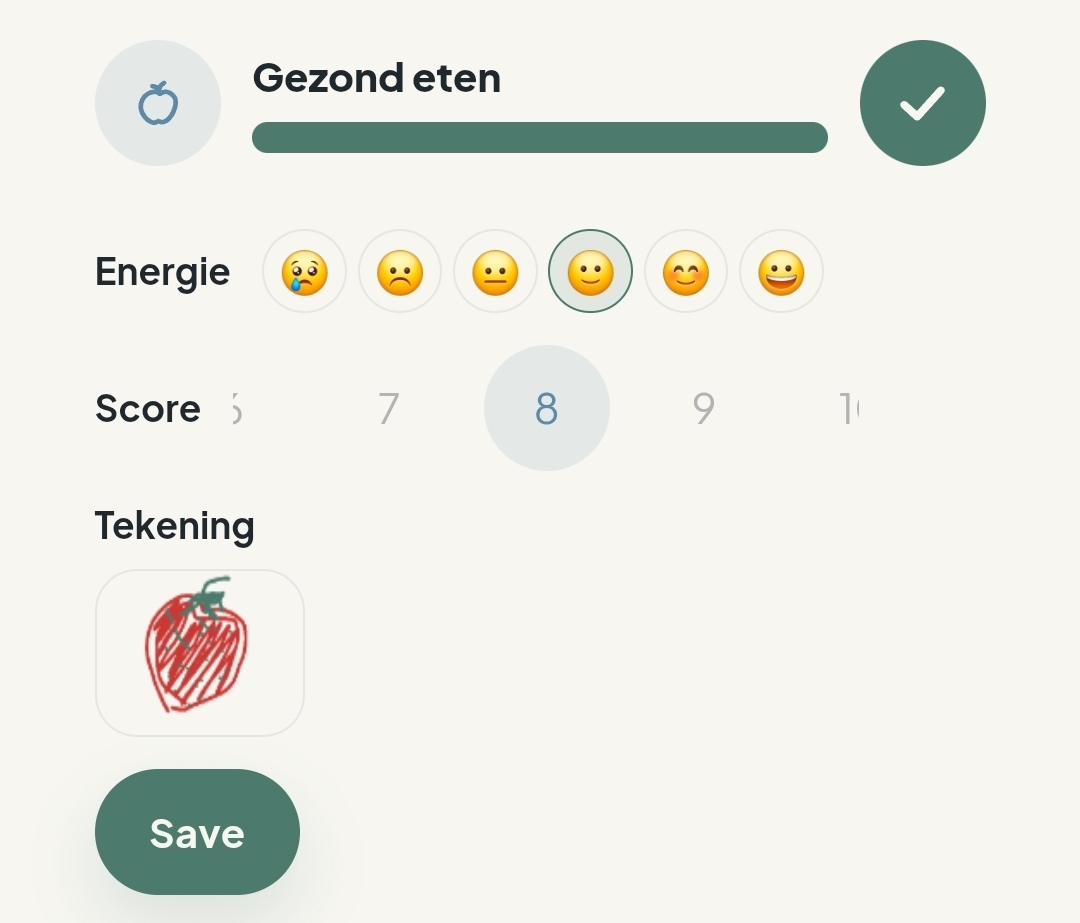
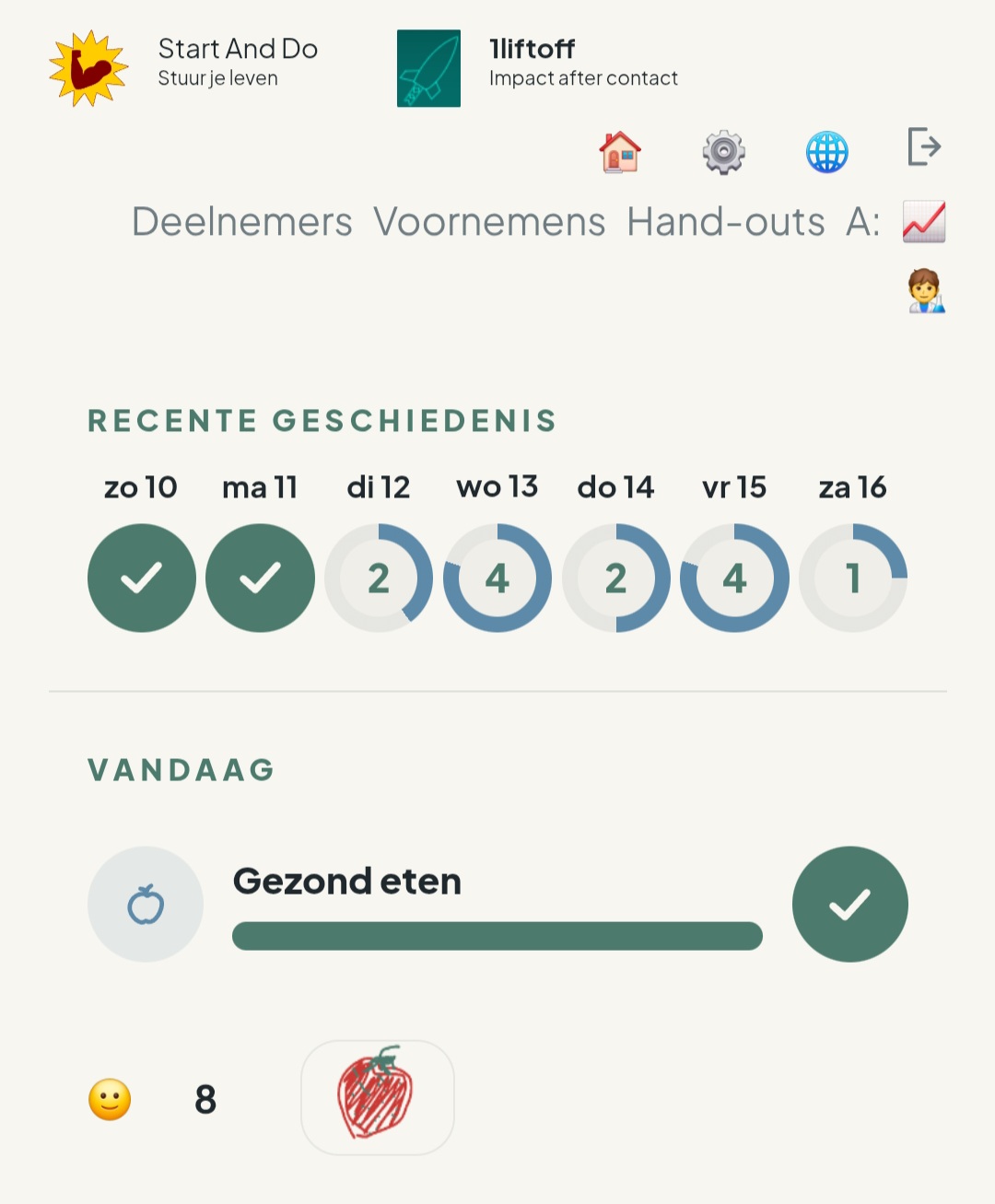
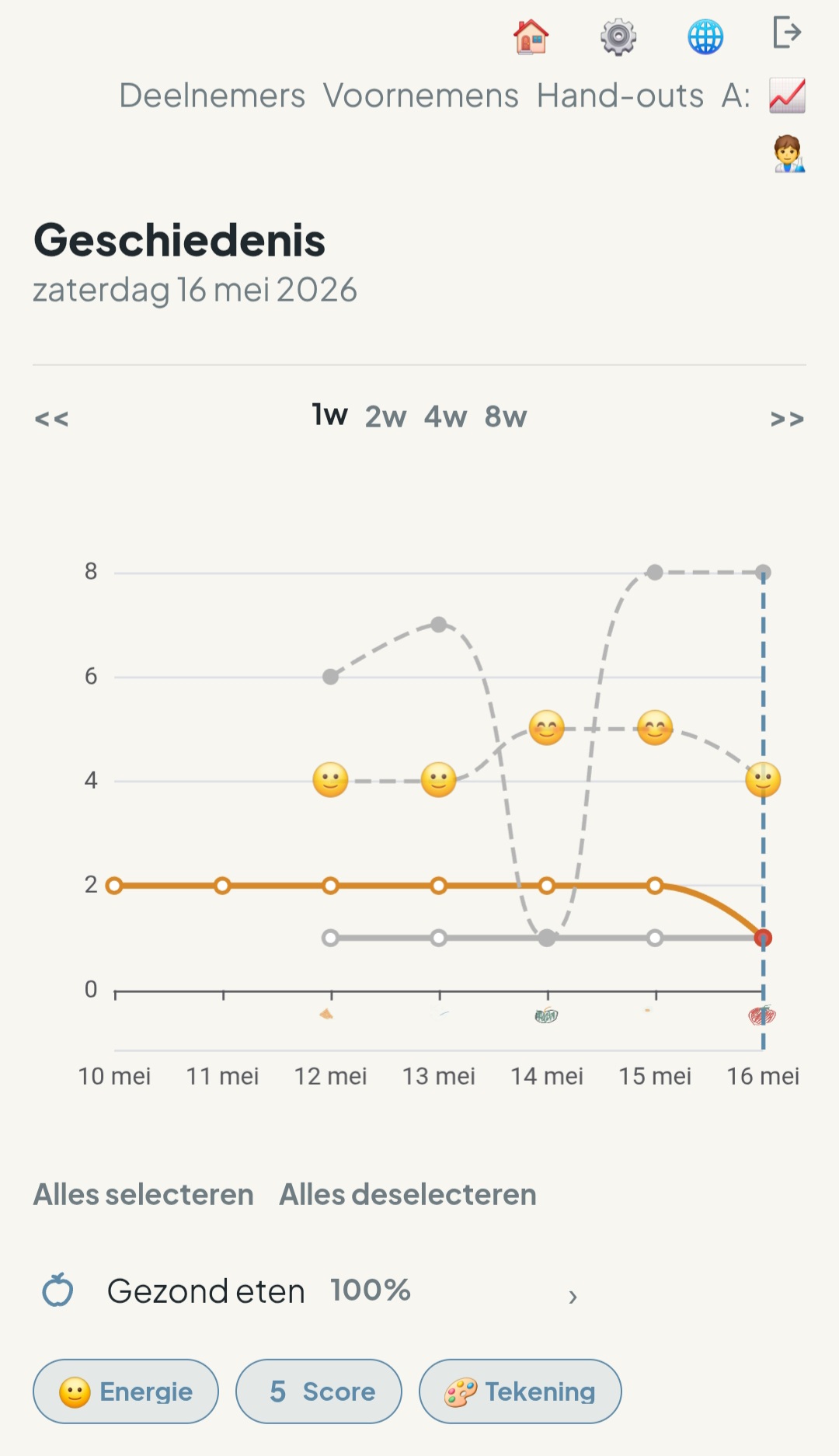
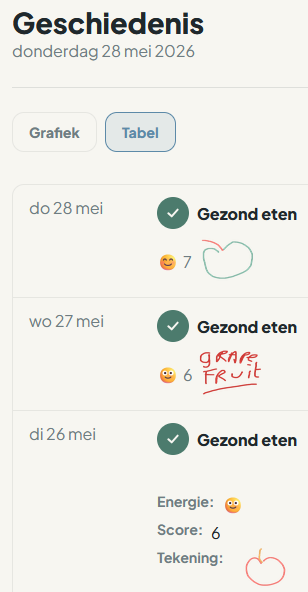
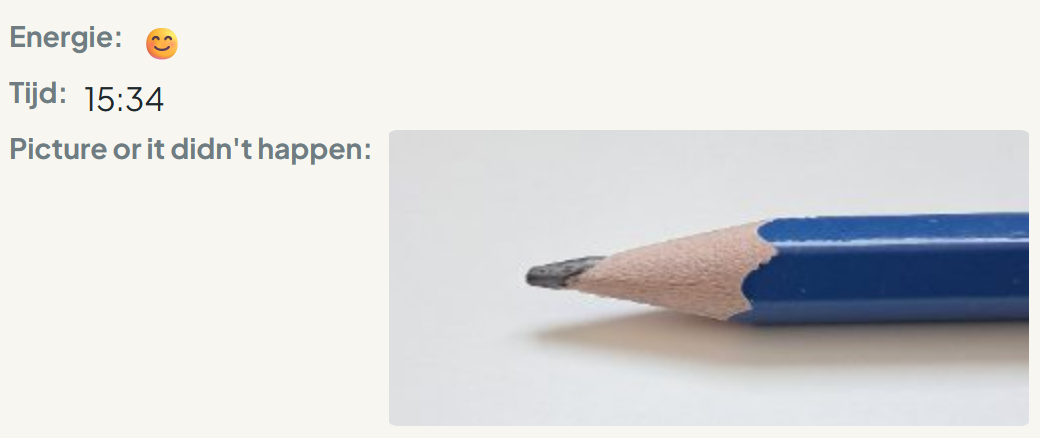
For each instance of progress on an intention, save additional information such as energy levels, minutes, or a drawing. Participants can complete these data points when they record progress, and you can also view them in History.
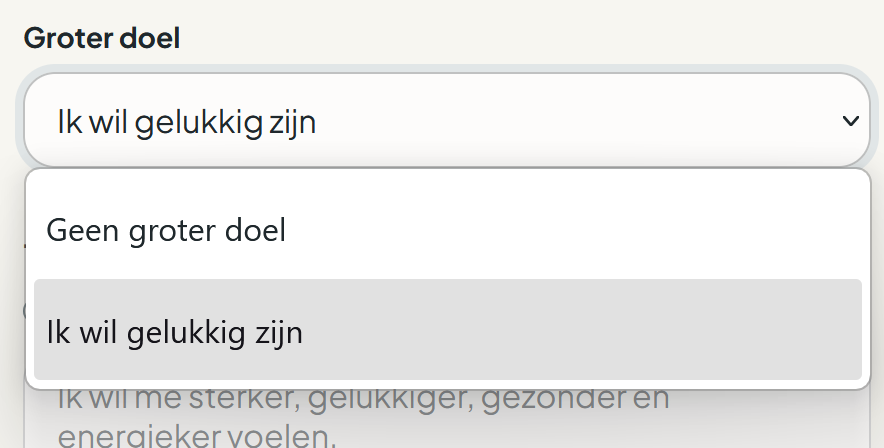
Set a North Star
When creating or changing an intention, link another intention as its North Star. For example, “I want to be happy” can be an umbrella for intentions such as “I meditate” or “I eat healthily”.
View history
View History as a table for another perspective on the data, for example when you use text notes. Show what is relevant to you and place multiple intentions side by side.
Frequently asked questions
How do I set up my logo?
Open your business account settings through the cog in the menu. Enter your practice details, add your logo, and save the changes.
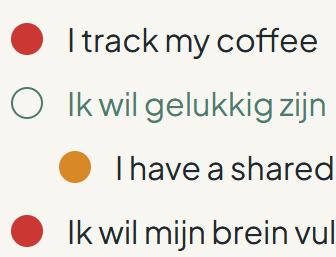
What do the traffic lights mean?
Green means everything has been done as expected. Empty means that no action was recently scheduled. Orange means that not all scheduled intentions have been completed. Red means that no scheduled intentions have been completed.
What is a guided intention?
A guided intention is visible to both the guide and participant. You can create it together and both make changes by setting its permissions.
Can participants share intentions themselves?
Yes. Participants can decide whether and how to share an intention with their guide, and can also create and share intentions themselves.
How do I block new intentions?
Open the participant and set that they may not create new intentions.
What happens when I archive?
An archived intention disappears from lists but remains visible in existing history. An archived handout is no longer visible to participants.
When do I use an intention without a target?
Use 0 times per day when you want to track information for which “more” is not necessarily better, such as cups of coffee. See No target and to-dos.
What are data points?
Data points are extra information recorded when making progress on an intention, such as an energy-level score, minutes, a photo, or a drawing. See Data points.
How do I view a participant's progress?
From the Intentions menu, open the history for a selected participant and compare multiple intentions at once.
Can a participant see sessions?
No. A session is visible only to guides. The participant sees it only when you fix an appointment.
When does a participant see appointments?
Once saved, an appointment is visible to the participant in Start And Do. For a limited session, only the selected participant sees it.
Do changes to a program template change my existing programs?
No. A program created from a template receives its own copy of the sessions and actions.
Why can I not schedule a limited session yet?
First select and save the participants for the session. You can then fix the appointment date and time.
Terms
- Participant
- A client you add and support.
- Intention
- The central action a client works on.
- Data point
- Additional information recorded with progress on an intention.
- Guided intention
- An intention that both the guide and participant can view and change.
- Handout
- Background information or an exercise that can be shared with participants.
- Template
- A reusable example of an intention or program.
- Business user
- A coach or other user with capabilities such as adding participants and sharing handouts.
- Program
- A series of sessions for one or more participants.
- Program template
- The reusable setup of a program, with sessions and actions.
- Shared, limited, and individual session
- Shared is for all participants, limited is for a chosen group, and individual is per participant.
- Session
- A contact moment with a participant that can have appointments and actions.
- Appointment
- The calendar appointment that makes a session visible and fixes its date.
- Action
- An action to carry out around a session.
- Manual action
- A session-related reminder for yourself.
- North Star
- An intention that serves as an overarching goal for other intentions.
Release notes
News
With programs, you can plan a series of sessions for one participant or a group. Planning and the Participant calendar show upcoming sessions and appointments.
Added features include traffic lights, life buoy handouts, sharing handouts with all participants, tags, blocking new intentions, templates, tracking images, archiving, intentions without a target, to-dos, and sharing settings.
Detailed instructions are in How-to, and the traffic lights are explained in Frequently asked questions.
Earlier updates
Earlier additions include North Stars, history as a table, data points, participants, guided intentions, business details, and separate viewing screens.
See the Quick Start Guide and How-to for the current workflow.